

คำตอบสั้น ๆ: This manual explains how to setup Microsoft Outlook 2013 using IMAP to send and receive email for an email mailbox you’ve created with Cloud E-mail Hosting Solution 1. Launch your Microsoft Outlook 2013. Select Add Accou
คู่มือนี้อธิบาย Setting up Microsoft Outlook ทีละขั้นตอน พร้อมคำสั่งที่ใช้ได้จริงและปัญหาที่พบบ่อย
This manual explains how to setup Microsoft Outlook 2013 using IMAP to send and receive email for an email mailbox you’ve created with Cloud E-mail Hosting Solution (Setting up Microsoft Outlook)
1. Launch your Microsoft Outlook 2013. Select Add Account
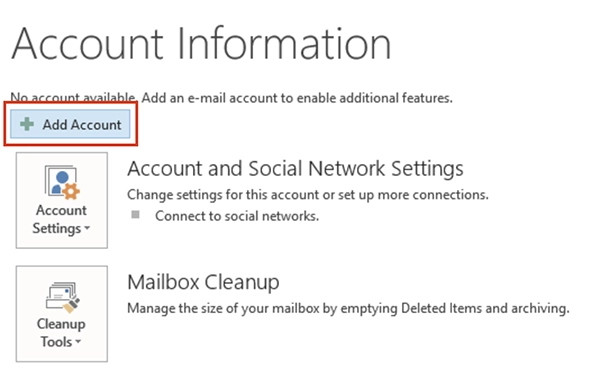
2. Choose Manual setup or additional server types and click Next.

3. In Choose Service window appears. Choose POP or IMAP and click Next.

4. On “POP and IMAP Account Settings” window appears.
enter your information as follows
1) User Information
- Enter Your Name and E-mail Address
2) Server Information
- Select IMAP from the drop down
- Incoming mail server : imap.mail-03.thaidata.cloud
- Outgoing mail server (SMTP) : smtp.mail-03.thaidata.cloud
3) Enter the e-mail address and password
4) Click More Settings.

5. Click the More Settings button. then Choose the Outgoing Server tab.
In the Outgoing Server tab, check My outgoing server (SMTP) requires authentication and make sure Use same settings as my incoming mail server is selected

6. Go to Advanced tab and enter Port
- For Incoming server (IMAP) enter : 143
- For Outgoing server (SMTP) enter : 587
Click OK button.

7. Click Next, Outlook should tell you that “all tests completed successfully”

8. You’re finished !
Click Finish, your email account in Microsoft Outlook 2013 is ready to use.

บทความ/ความรู้ ที่น่าสนใจ
- เข้าใจ On-Prem, IaaS, PaaS and SaaS ง่ายๆ ใน 1 นาที
- วิธีการตั้งค่าใช้งานบน MICROSOFT OUTLOOK 2013 (POP E-MAIL)
- 6 เหตุผล ที่บริษัทต้องมี Email Hosting @yourdomainname
ทำความเข้าใจ Setting up Microsoft Outlook ก่อนเริ่ม
IMAP keeps every message on the mail server and lets each device mirror it, so a message read on a phone shows as read in Outlook as well. That is what makes it the right choice for a business mailbox used from more than one place. POP does the opposite: it downloads mail to one computer and, with the wrong setting, removes it from the server for good. The values that matter during setup are the incoming and outgoing server names, their port numbers, and the encryption method — all three must match exactly what your provider issued.
สิ่งที่ต้องเตรียมก่อนใช้งาน Setting up Microsoft Outlook
- Your full e-mail address and password.
- The incoming (IMAP) and outgoing (SMTP) server names, ports and encryption type from your welcome e-mail.
- Microsoft Outlook 2013 installed and closed before you begin, so the new profile is created cleanly.